The short answer: when a green screen is brighter in one part of the frame than another, no single key setting can describe it. A keyer works by measuring the distance between each pixel and one sampled colour. If the screen itself spans two or three different greens, any tolerance you choose is a compromise: wide enough to clear the dark corner and the subject starts losing chunks, narrow enough to protect the subject and the bright side never goes away. The fix is not a better keyer. It is to stop asking one key to cover the whole frame — draw a garbage matte, split the frame into zones that each hold a consistent green, and run a separate key per zone. The half that follows, once the matte is clean, is the background: spill, edge, shadow and light direction.
Everything below is that workflow in order, including the diagnosis step most people skip, the starting values that keep the passes from fighting each other, and an honest section on when the footage is not worth rescuing at all.
Why one key colour cannot describe an unevenly lit screen
It helps to be precise about what a keyer actually does, because the whole problem follows from it. A chroma key does not "delete green". It computes an alpha channel: for every pixel it measures how far that pixel sits from the key colour in colour space, and decides how transparent to make it. There is one centre point and one radius — the radius is what the tolerance, similarity or screen-gain slider controls.
An evenly lit screen occupies a small, tight cluster around that centre point, so a small radius catches all of it without touching anything else. An unevenly lit screen is not a point at all — it is a smear. The green near the lamp is bright and slightly yellow; the green in the far corner is darker and slightly blue. Now the radius has to stretch across that whole smear to reach both ends, and everything else that falls inside it — green clothing, a green plant in the background, the shadowed edge of dark hair — gets swallowed too. That is the mechanism behind the familiar "I raise tolerance and my actor loses a shoulder" complaint. It is not a tuning problem. It is the wrong number of keys for the footage.
Chroma subsampling makes it worse. Footage recorded at 4:2:0 stores colour at a quarter of the resolution of brightness, so the exact place where green meets hair is the place with the least colour information. A slightly over-wide radius then bleeds into that uncertainty and you get the ragged, green-tinged fringe that no amount of despill fully removes.
Step 0 — read the screen before you touch the keyer
This is the step people skip, and skipping it is why they spend an hour nudging sliders that were never going to converge. Before keying anything, park the playhead on a frame where the subject is roughly still and look at the screen itself.
- Sample the green in five places: the four corners and the area directly behind the subject's head. Note the values, or simply eyeball how far apart they are.
- If all five are within a few percent of each other, stop reading here — you have a normal screen and a single key will handle it.
- If the brightest and darkest areas differ by roughly 10 IRE or more, or the hue visibly shifts from one side to the other, you have a multi-pass job. Plan for it instead of fighting it.
- The practical tell is behavioural: if you find yourself wanting to raise tolerance for the left of the frame and lower it for the right, that is the footage telling you it needs two keys.
Two minutes here saves the twenty you would otherwise spend on a single key that never quite works.
Step 1 — garbage matte first, and keep it rough
A garbage matte — sometimes called a junk matte — is a rough mask that throws away everything outside the subject's immediate area: the ceiling, the floor, the far edges of the screen, the boom arm you forgot was in shot. It goes on before the key, not after.
Why first: a keyer has to solve every pixel it is shown, and it solves them worst at the frame edges where lighting is typically most uneven. Exclude those regions and the key only has to deal with the genuinely difficult part — the boundary between the subject and the screen. The matte also gives you an obvious place to fix a persistent dark corner: if a region simply will not clear, mask it out and paint the background in instead.
The discipline is in the word "rough". A rectangle with a few extra points, hugging the subject with a comfortable margin, is enough. The moment you start drawing a pixel-perfect outline you have started rotoscoping, and rotoscoping is the slow thing you were using a key to avoid. If the subject moves, keyframe the matte at the extremes of the movement and let it travel between them.
Step 2 — split the frame into zones
Now divide the frame into regions that each contain a reasonably consistent green. Turn on the matte or alpha view — most keyers will show you the black-and-white alpha — and look at where the key succeeds and where it leaves grey mush. The boundaries between zones should fall along the lines where the lighting changes.
- Prefer straight edges. A vertical or diagonal split is easier to hide than a hand-drawn curve.
- Hide the boundary behind the subject where you can. A split that runs through the middle of the actor is far more work than one that runs down the edge of their silhouette.
- Two or three zones covers most real footage. Each extra zone adds a seam, and seams are a new class of problem — see Step 4. Do not split a screen five ways because it looked slightly different in five places.
The goal is not to make every pixel perfectly green. It is to make each zone internally consistent enough that one tolerance value can describe it.
Step 3 — key each zone, brightest first
Apply a key per zone, each limited to its region by a mask, and sample each key's colour from inside its own zone. Do not reuse one sample across zones — that is the whole thing you are trying to avoid.
- Start with the zone whose green is brightest and cleanest. It usually keys easily and gives you a reference for what "good" looks like.
- Sample at mid-height in that zone, away from folds, corners and highlights.
- Set that zone's tolerance until its background clears, then back off one notch so the subject stops losing detail.
- Move to the next zone and repeat, judging it against the first rather than in isolation.
- Feather each zone's mask by a few pixels. A hard-edged zone mask will print a visible line into the composite even when both keys are perfect.
One caution on order: key the brightest zone first, not the darkest. Dark green is closer to black, and black-adjacent pixels are where keyers are least confident — you will spend longer tuning it, and it is easier to judge once you already have a clean reference beside it.
Step 4 — reconcile the seam between zones
The join between two zones is the new failure point, and it is the reason people abandon multi-pass keying halfway through. Two keys that are each correct in isolation can still disagree along the line where they meet, showing up as a faint step in opacity.
- Overlap the zone masks. Let both keys contribute across a band a few dozen pixels wide rather than meeting at a single line.
- Check the composite on a strongly coloured background. A seam that is invisible over dark footage is obvious over magenta or bright cyan. Keep a vivid colour under the keyed layer purely as a test surface, then swap in the real background when it looks clean.
- Adjust the darker zone, not the brighter one. If a seam persists, nudge the darker zone's tolerance down slightly. Pushing the bright zone's tolerance up to meet it is how you reintroduce the lost-chunks problem you split the frame to avoid.
Step 5 — despill, then edge cleanup, in that order
Once the matte is clean, two more stages follow, and the order matters. Despill removes the green light that bounced off the screen and onto the subject — the tint on hair, shoulders and anything shiny. It operates on the fringe of the subject and does nothing for a bad matte, so running it before the matte is right just wastes your judgement on a moving target.
Raise despill slowly while watching skin tones and light clothing; too little leaves a green rim, too much drains the colour out of the subject entirely. If despill is not enough, a targeted saturation reduction on the green hue range — not a global one — cleans up the remaining fringe without touching skin.
Edge cleanup comes last: a slight choke or shrink to pull the matte in by a pixel, then a small blur on the alpha channel to soften it. At 1080p, one to three pixels of softening is usually enough. Choking is the underrated half of this pair — it removes the thin contaminated rim of semi-transparent pixels that sits right on the subject's edge, which is exactly the rim that despill cannot fully reach.
One special case worth knowing: if the subject is wearing or holding something green, no amount of tolerance tuning will save it, because the keyer cannot tell the prop from the screen. That is what a hold-out matte is for — a duplicate of the layer, masked to the prop alone and placed on top, so the prop stays opaque where the key would otherwise have punched a hole through it.
Everything above gets you a clean matte. That is the point where a green screen editor hands over to a background editor: the background still has to be rebuilt, and it has to survive four things the key never touched. The rest of this page is that second half, because a flawless matte with a green rim and a missing shadow still reads as fake.
Spill is contaminated light, and it can be measured
A green screen is a large, brightly lit surface sitting a metre or two behind the subject. It bounces. The light that lands on hair, shoulders, ears and anything with a sheen carries the screen's colour with it — which is why spill shows up on exactly the surfaces that catch light (blonde hair, white shirts, a bald head) and why it is so obvious when it survives to the final export.
The useful property is that contamination has a direction. On a green screen, spill adds green and only green, so for every pixel you can compute a single number: how far green exceeds the larger of red and blue. Zero means clean; a positive value means the pixel is carrying screen light. FFmpeg's despill filter is built around exactly this quantity — its documentation describes the filter as "Remove unwanted contamination of foreground colors, caused by reflected color of greenscreen or bluescreen", with the green option documented as "Should be -1 for greenscreen."
That number is diagnostic, and the diagnosis matters because spill and a bad matte produce a fringe that looks identical at 100% zoom while needing opposite fixes. Look at the alpha channel instead of the picture: if the fringe is opaque, the pixel is subject carrying green light, and despill is the right tool. If the fringe is grey, it is semi-transparent screen left in the matte, and no amount of despill will remove it — the matte needs a choke or a tighter tolerance.
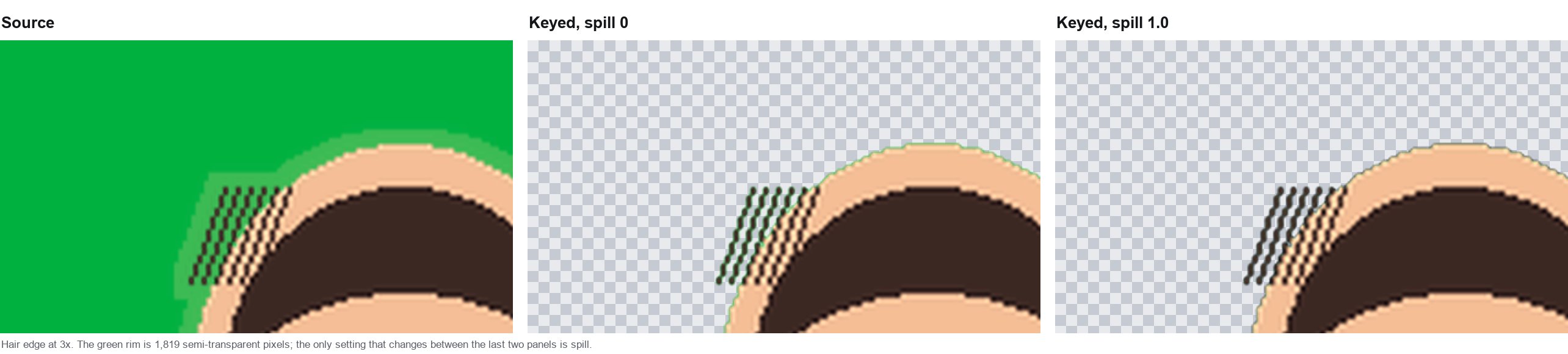
Three ways to remove spill, and what each one costs
These are not three settings of one thing. They are three different operations, and they fail differently.
- Channel-limited despill. Pull green toward the other channels, proportionally — most editors expose this as a "spill suppression" slider, and the formula is
g' = g − (g − max(r, b)) × spill. It is cheap, predictable and never touches alpha. Its cost: on subject matter that is genuinely green, a plant or a green jersey, it desaturates the subject along with the spill. - Targeted hue/saturation reduction. Select the green range and drop its saturation, leaving everything else alone. This preserves non-green detail better, but the selection is soft — and the edge of the selection becomes the edge of the fix, which on hair is exactly where the problem is worst.
- Rebuild the edge by hand. Mask the subject and paint or clone a clean edge, or pull a clean plate from a frame where the subject was out of the way. This is the only method that beats a badly lit screen, and it costs minutes per shot rather than seconds per clip.
Match the replacement to the light that was already in the shot
The most common reason a technically clean composite still reads as fake is not the matte. It is that the new background was chosen for how it looks rather than for whether its light agrees with the light on the subject. Three properties to compare before you commit to a plate:
- Direction. If the key light on the subject comes from camera left, the plate's brightest area has to be camera left too. A window on the wrong side is the single most visible giveaway in this whole workflow.
- Height. A low sun and a high window put shadows in different places. A subject lit from above cannot stand in front of a plate lit from below.
- Softness. Hard light on the subject against a soft, overcast plate reads as wrong even when both are correctly exposed, because the transition from highlight to shadow is a different width.
Then the shadow. A subject with no contact shadow floats, and the eye does not need to know why it looks pasted. Two options, and only two: keep the shadow that was already on the screen and grade it into the new plate, or add one that matches the new plate's light. Keeping the original is usually better, because the shadow carries real information about the subject's pose and the light on set — but it requires a matte that keeps semi-transparent pixels rather than cutting them, which is a matte decision, not a colour decision. A matte with a clean grey ramp is worth more than a matte with a hard edge.
Starting values you can defend
Most advice about spill is a number with no source. Two sets of numbers do have one. OBS publishes its chroma key defaults, which makes them a fair starting point for 1080p on an evenly lit screen: Similarity 400, described as the threshold between the key colour and the source, where "lower values will remove fewer pixels; higher values will remove more aggressively"; Smoothness 80, where "lower values leave hard edges around removed pixels; higher values soften the edge"; and Spill Reduction 100, which "specifies how aggressively to remove traces of the key color from the Source around the edge of other colors (for example, green pixels around a subject's hair)". Those three are defaults, not rules — but they are documented defaults, which is more than most advice offers.
On the command line the two stages stay separate, which is what lets you judge them separately: chromakey=0x00b140:0.12:0.06 keys, and despill=green=-1 cleans the fringe afterwards without re-keying. FFmpeg documents similarity at both ends of its range — "0.01 matches only the exact key color, while 1.0 matches everything" — and blend as what decides whether the boundary is hard or ramped: "0.0 makes pixels either fully transparent, or not transparent at all." Holding the matte fixed while changing only the spill value is the only way to see what the spill setting actually did.
Four checks before the composite ships
- Composite on magenta, not on black. A green fringe against a dark plate is invisible and against magenta is unmissable, because the two are opposites.
- Sample the edge numerically. Green should not sit consistently above both red and blue across a patch of the subject's boundary.
- Look at the matte alone. White inside the subject, black outside, and a thin grey ramp at the boundary rather than a thick one.
- Re-open the exported file, not the preview. Encoding softens colour boundaries first, and the file is what ships. For a single frame, the twelve-check pass covers the matte side in more depth.
When it is not worth the work
Multi-pass keying is a rescue technique, not a default. Two mediocre keys do beat one compromise key, but there is a point where the passes, seams and mask animations cost more than starting over. A rough way to decide:
- Screen even, subject moving freely: one key, standard settings. Do not over-engineer it.
- Screen uneven, subject mostly still: two zones plus a garbage matte. This is the sweet spot and covers a surprising amount of real footage.
- Screen very uneven, fast motion, fine hair: the keying time starts to rival rotoscoping. Rotoscope the few hard frames and key the rest, rather than building a five-zone rig you will have to re-animate every time the subject shifts.
- You still have access to the subject and the room: reshoot. Relighting takes twenty minutes; a five-zone key can take an afternoon and still look worse.
What prevents this on the next shoot
- Light the screen separately from the subject, and check it with a waveform or scope if you have one — the target is an even value across the whole surface, not a bright one.
- Do not overexpose the screen. Blown-out green clips toward white and loses the colour information the keyer needs, which is worse than a slightly dim screen.
- Keep the subject at least a metre and a half from the screen. Distance is what stops green bouncing onto them in the first place.
- Shoot the highest chroma quality the camera offers. 4:2:2 halves the subsampling problem compared with 4:2:0.
- Avoid green clothing, green props and green reflections in glasses — each one is a hole in your matte waiting to happen, and each one costs a hold-out matte to fix.
If you want the fuller version of that list, our green screen lighting guide goes through the setup in more detail.
When you do not need a full editor
Multi-zone keying earns its keep on moving footage that has to hold up over time. If the job is a single frame, a thumbnail, a profile picture or a short clip — and especially if the screen is reasonably evenly lit — a full editor with masks and animated mattes is more machinery than the task needs.
For those cases our own green screen remover runs entirely in the browser: it takes an image — PNG, JPG, WebP or BMP — and processes it on your device, never uploading it to a server, which matters when the footage is client work or shows people who did not agree to have their picture sitting on someone else's disk. If the source is a clip, export the frame you want to fix as a still first; this tool does not decode video. You can confirm the no-upload claim rather than trust it — open your browser's developer tools, switch to the network panel, and watch that no request carries your file. If your backdrop is a solid colour other than green, the chroma key background remover is built for that case, with a matte view so you can inspect the edges before you export.
For anything longer than a few seconds, or anything that needs masks, hold-out mattes and multiple key passes, stay in an editor. That is exactly what the zone workflow above is for — and if the export is the part giving you trouble rather than the key, the export and transparency guide covers why an MP4 export so often comes back flat.
Quick answers
Can a green screen editor fix an unevenly lit screen automatically?
Not reliably, and not for the reason most people assume. Automatic keyers are good at finding a colour and judging edges; they are not good at deciding that the frame contains two different greens that need two different keys. The more uneven the lighting, the more the automatic result depends on a single tolerance value that cannot be right for every part of the frame at once.
Why does raising the tolerance make my subject lose chunks?
Because tolerance is a radius, not a smarter decision. Everything within that radius of the key colour becomes transparent — so once the radius is wide enough to reach a badly lit corner of the screen, it also reaches green clothing, dark hair edges and shadowed detail. The wider the range of greens in your screen, the wider the radius has to be, and the more collateral damage it does.
What is a garbage matte and do I need one?
It is a rough mask that removes the parts of the frame you do not need — the surrounding room, the edges of the screen, anything outside the subject's area. You need one whenever the screen is poorly lit, because it stops the keyer from having to solve the frame's worst-lit regions. Keep it rough: the moment it becomes a precise outline of the subject, you have started rotoscoping and lost the time you were trying to save.
How many key passes is too many?
When you are spending more time hiding the seams between zones than you would spend rotoscoping the shot. In practice two or three zones solve most uneven screens. Beyond that, either the lighting was bad enough that a reshoot is cheaper, or the shot needs rotoscoping on a few hard frames rather than a fragile key rig.
Is it easier to just reshoot?
Often, yes — if the subject and the room are still available. Relighting a screen evenly takes minutes; rescuing badly lit footage takes an afternoon and still tends to look worse. Multi-pass keying exists for the footage you cannot reshoot, not as the preferred way to work.
Why does my subject still look green when the background is already gone?
Because the green on the subject is not the screen — it is screen light reflected onto hair, shoulders and anything shiny. A key removes pixels that match the screen colour; the spill is a colour cast on pixels that are legitimately subject. It has to be removed by a separate despill stage that changes colour without changing alpha, which is why raising tolerance never fixes it.
Does raising spill suppression fix a green fringe?
Sometimes, and only up to a point. Despill pulls green toward the other channels, so it helps when the fringe is subject pixels carrying green light. It does nothing when the fringe is semi-transparent screen left in the matte — those need a choke, which pulls the matte in by a pixel, or a tighter tolerance. Tell them apart by looking at the alpha: an opaque fringe is spill, a grey fringe is matte.
Can spill be fixed after the export?
Only if the file still carries the colour you need to change and the matte is already correct. Once the composite is flattened onto a background, a green fringe sits on top of real background pixels and removing it means inventing what was underneath. Do the despill before the composite, not after.
Should I keep the shadow that was on the screen?
Usually, yes. The original shadow carries real information about the subject's pose and the light direction on set, which a hand-drawn shadow rarely matches. It also requires a matte that keeps semi-transparent pixels rather than cutting them — so it is a matte decision made at the keying stage, not a shadow effect added afterwards.
Related reading: how to light a green screen, removing a green screen from video, chroma key background remover, and blue screen versus green screen.