The short answer: a key that looks right is not the same as a key that is right. You judge a matte while zoomed to fit, on a white page, staring at one frame you have now looked at forty times. Those three conditions are doing most of the work of hiding the defects. A pre-delivery check is not a mood or a second opinion — it is deliberately breaking those conditions, in a fixed order, while you still have the project open and the settings in front of you.
Most people run a chroma key remover, look at the result, think "that's clean", export, and then see a green rim on a phone screen two hours later. Nothing changed in the file between those two moments. What changed is the backdrop behind the subject, the size of the image, and who was looking. The checks below exist to move that discovery forward in time.
Twelve checks, each with a pass condition and the specific defect it catches. The order is deliberate: the cheapest checks that catch the most common defects come first, and the ones that cost a re-export come last.
The twelve checks, in the order that finds the most defects first
| # | Check | Pass condition | Catches |
|---|---|---|---|
| 1 | Composite over black | No grey or green haze at the silhouette | Unsuppressed spill on the edge |
| 2 | Composite over white | No dark rim, no halo | Matte pulled too tight; ramp too narrow |
| 3 | Composite over magenta | Edge reads as a clean line, not a green seam | Residual green, invisible against green-ish backdrops |
| 4 | Inspect the alpha alone | Subject solid white, screen solid black, thin ramp between | Holes, grey patches, leftover screen islands |
| 5 | Sample edge pixels numerically | Neutral surfaces read roughly equal R, G, B | Spill you cannot see because you expect it |
| 6 | Read the alpha histogram | Almost everything at the two ends, little in the middle | A key that is soft everywhere instead of at the edge |
| 7 | Play at normal speed, not frame by frame | Edge is stable to the eye while the subject moves | Chatter and boiling on hair and thin edges |
| 8 | Find the worst frame and grade that one | Worst frame passes, or the compromise is accepted knowingly | A key tuned on an easy first frame |
| 9 | Look for edge crawl at 400% | Boundary holds the same shape over consecutive frames | Threshold sitting on the noise floor |
| 10 | Re-open the exported file | Same edge quality as the timeline | Compression eating the edge you approved |
| 11 | View at the smallest and largest real size | Holds up at both; no surprise at either end | Downscaling hiding errors; upscaling exposing them |
| 12 | Compare across the cut | Edge character matches on both sides of every cut | Per-shot settings that pop at the edit |
How do I get the best green screen removal results?
By naming the defect before touching a slider. "Bad key" is not one problem, it is four, and each one has a different signature and a different fix. Almost every wasted afternoon is someone treating defect three with the tool for defect two.
- A fringe. The matte is correct — the edge sits exactly where it should — but the pixels at that edge are still the colour of the screen. You see a thin coloured line. This is a colour problem, so the fix is in the spill controls, not the threshold. Raising the threshold to chase it will only start eating the subject.
- A halo or a dark rim. The opposite: the matte is slightly too tight or too soft, so it includes a band of half-screen pixels or cuts into the subject. You see a soft grey or black outline that gets worse against a bright backdrop. This is a matte-edge problem, fixed by moving the ramp, not by adding more spill suppression.
- A hole. A piece of the subject is missing, or a prop vanished, or the gap between an arm and the torso is wider than it should be. This is the matte answering "screen" where the answer was "subject" — usually because that part of the subject is close in colour to the screen, or dark and underexposed. Fix it with a hold-out region, not with a global setting.
- Chatter. The edge is fine in a still and crawls in motion. This is a temporal problem: the key decision is flipping frame to frame because the input sits near the threshold, and compression noise pushes it either side. The fix is to move the threshold away from the noise, or to widen the ramp slightly so the decision becomes less binary.
Four defects, four different fixes, and the checks below are arranged so that you find out which one you have before you start adjusting anything. That is the entire quality gain available at this stage. If the source is bad enough, none of it helps, and the honest move is upstream — the lighting guide covers that side, and rescuing unevenly lit footage covers the case where you cannot reshoot.
What's the difference between Green Screen, Alpha Mask, and Foreground Mask?
Three views of the same shot, and the checklist uses all three because each one hides a different defect. Getting the vocabulary straight is what makes the rest of this page usable.
The green screen is the source plate: full colour, background included. It is the only view where you can judge whether the screen was evenly lit, and therefore the only view where you can tell a keying problem from a shooting problem.
The alpha mask is a single grayscale channel that answers one question per pixel: how much of this pixel survives. White means keep, black means discard, grey means partial. It carries no colour at all. This matters more than it sounds, because it means the alpha can be perfect while the result still looks wrong — the mask decides opacity, never colour.
The foreground mask is the subject with the alpha already applied and the screen colour removed from the surviving pixels. This is where spill lives. A pixel at 50% opacity that still carries green will composite as a green-tinted ghost; the same pixel with the green neutralised composites cleanly. Two files can have identical alphas and completely different foregrounds, which is exactly why checking only the alpha is not enough.
One consequence worth knowing: the order in which alpha and colour are combined is a real setting, not a formality. If the colour is stored as-is and the alpha applied later, the edge pixels still contain screen colour and will fringe against any new background. If the colour is stored already multiplied by the alpha, the edge is clean but the same image viewed without its alpha looks dark and muddy. Mixing the two conventions between programs is a classic source of edges that fringe in one application and look correct in another — and it is not a bug in either.
Checks 1–3: change the backdrop, because your eye is compensating
The single most effective thing you can do to a matte is put it on a background you did not choose. Every default preview background is flattering in a specific way, and each of the three extremes below removes one of those flatteries.
Black. A dark fringe disappears. Black is what most players show behind transparency anyway, so this check is really asking: does the subject look like it was cut out with scissors, or does it sit on the black? Any grey haze, any faint green glow around hair, any soft rectangular ghost where the screen used to be — all of it shows here and nowhere else. This is the check that catches spill you have stopped noticing.
White. The reverse. A tight matte that shaved a pixel off the subject leaves a dark line, and against white that line reads as a drawn outline. White also exposes the other common failure: a matte that is too soft leaves a translucent band, and over white that band turns into a visible pale halo wider than the subject's actual edge. If the subject looks like it has been outlined in pencil, the matte is too tight; if it looks like it is glowing, the ramp is too wide.
Magenta. This is the one people skip and the one that finds the most. Magenta is the complement of green — it contains red and blue and no green at all. So any pixel still carrying screen green is the only thing in the frame that is not magenta, and the edge shows up as a distinct seam rather than blending into a green-ish backdrop. The reason this matters is that a great many real deliveries put the subject in front of something greenish, bluish or teal: a forest, a studio wall, a gradient. Against those, residual green is invisible to you and visible to everyone else. Check on magenta and the question stops being a matter of taste.
Three backdrops, three defects, about ninety seconds. If a defect only appears on one of the three, note which one — that tells you what kind of defect it is before you open any controls.
Checks 4–6: read the matte as numbers, not as a picture
Switch the viewer to the alpha alone and you are looking at a black-and-white image that should be almost entirely black and white. What you are hunting is anything in the middle, and anything on the wrong side.
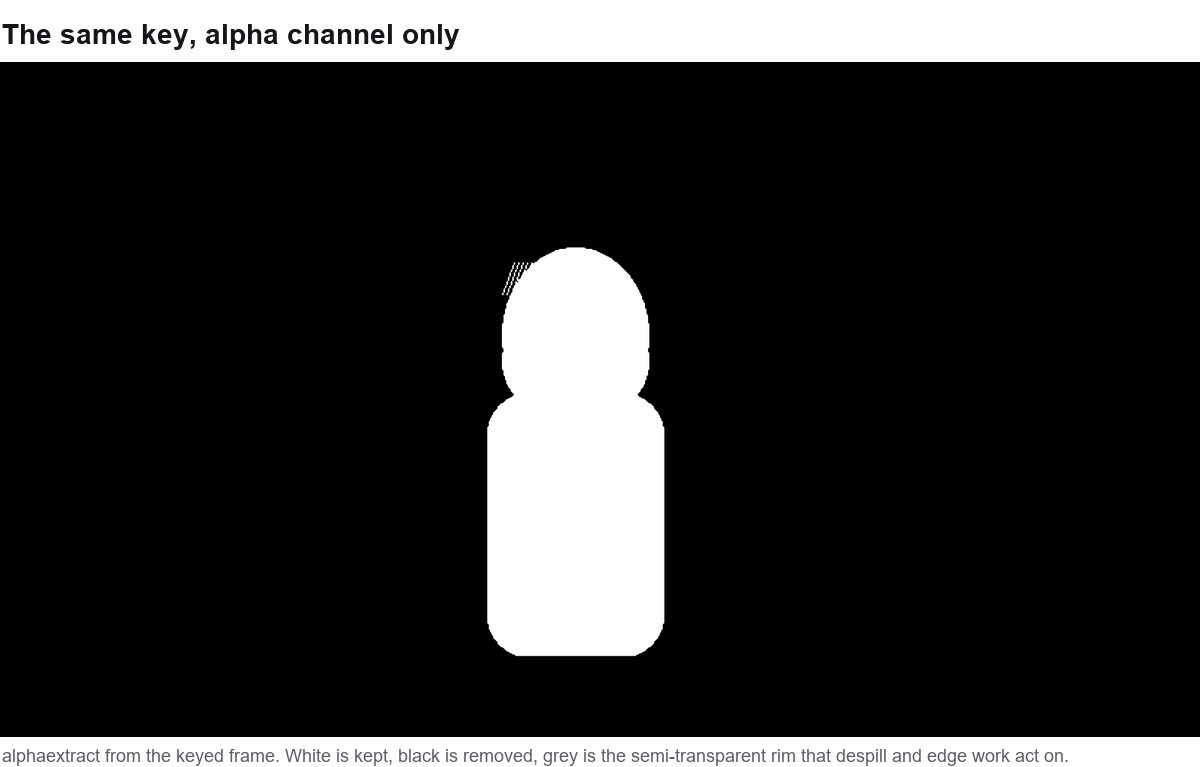
alphaextract from a keyed 1920×1080 frame.- Grey inside the subject. Skin, a white shirt, a glossy surface reading as mid-grey means those pixels are only partly opaque. Against a busy background you will see the background through the subject. A few pixels of grey at a soft fold is normal; a patch the size of a hand is a defect.
- Black inside the subject. A hole. Often in the gap between an arm and the body, under a chin, or anywhere the screen light reached but the keyer decided the value was too close to the screen to keep.
- White specks in the screen area. Leftover islands — a highlight on the fabric, a reflection, a bit of gaffer tape. They are invisible at fit-to-window and obvious as grey rectangles over a new background.
Then read the histogram, if your tool shows one. A healthy matte is two tall spikes at the ends with a thin tail in between, because only the boundary pixels should be partial. A matte with a broad plateau through the middle is soft everywhere — usually the result of widening the ramp until the screen cleared, which trades a hard edge for a translucent subject. That trade is almost always the wrong one, and the histogram is how you see it happening.
The numeric check is the one that sounds fussy and saves the most re-exports. Pick a surface in the shot that should be neutral — a grey shirt, a white wall, a metal tripod — and sample it with the eyedropper. If red, green and blue are within about ten levels of each other, the spill is under control. If green sits fifteen or more above both of the others, the pixel is still carrying screen colour, and no amount of edge work will fix it because the problem is not at the edge. Treat those numbers as a working threshold rather than a standard: what matters is that you are comparing two numbers instead of trusting your eye on a surface you have already accepted.
Checks 7–9: motion is where the key actually breaks
A still frame is the easiest thing a key will ever be asked to do. The defects that get delivered are almost always temporal, and they are invisible in the frame you have been staring at.
Play it at normal speed. Not scrubbed, not stepped — played, at 100% zoom, over the section with the most movement. Human vision is far more sensitive to an unstable edge in motion than to a slightly wrong edge in a still, which is why a matte that passes every still check can look amateurish the moment it plays. Ten seconds of honest playback finds more than an hour of frame stepping.
Grade the worst frame, not the first. Scrub for the frame where the subject is closest to the screen, moving fastest, or worst lit — the moment they turn their head, the frame where the light flares. Tune on that one and accept that the easy frames will be slightly conservative. Tuning on frame one and hoping is how a key ends up looking perfect in the thumbnail and wrong in the middle.
Look for crawl at 400%. Step through five or six consecutive frames around a hair edge and watch the boundary. If it changes shape frame to frame — thickening, thinning, sprouting a pixel and losing it — the threshold is sitting on the noise floor, and the key is making a fresh coin-flip decision every frame. This is the defect people describe as "boiling". Two fixes, in order: move the threshold away from the noise so the decision is unambiguous, and if that is not possible, widen the ramp slightly so the decision stops being binary. Note that the second fix trades crispness for stability, which is usually the right trade in motion and the wrong one in a still.
Checks 10–12: the file is not the timeline
Everything above happens in an editor that is showing you an uncompressed or lightly compressed decode. The deliverable is not that. The last three checks are about the gap between the two.
Re-open the exported file and look again. Not the preview, the file. Delivery codecs spend their bitrate on the parts of the frame that change most, and an edge against a flat background is exactly the kind of detail that gets smoothed. Colour information is also stored at lower resolution than brightness in most delivery formats, which means the boundary — a colour boundary as much as a brightness one — is the first thing to soften. A one-pixel green seam that survived your checks can become a two-pixel smear after encoding, and the only way to know is to decode what you actually made. If your format supports a quality setting, this check is how you find out whether you can afford the lower one.
Look at the smallest and largest size the audience will use. Downscaling hides edge errors, sometimes completely — a matte that is marginal at full resolution can look flawless as a thumbnail. Upscaling does the opposite and turns a soft ramp into a visible blur. So check both ends: the size it will appear in a feed, and the size it will appear on the biggest screen anyone will use. If it only works at one of them, you have found the real target, and it is usually the big one.
Compare across the cut. In a scene with several shots, each one tends to get keyed separately, by whoever got to it, with whatever setting looked good that day. The result is an edge that changes character at every cut — crisp here, soft there, slightly green in the third shot — and the viewer reads it as the subject flickering rather than as a keying inconsistency. Put the last frame of one shot next to the first frame of the next on the same background and compare. Two shots that are individually acceptable can still be wrong together, and matching them is a two-minute fix at this stage and a reshoot later.
One more thing belongs in this group even though it is not strictly a key check: contact. A perfectly keyed subject placed on a new background with no shadow under them floats. A soft, low-opacity shadow where the subject meets the ground — or a subtle darkening where they would block light — does more for believability than another hour of edge work. It is also the defect viewers notice first and can never name.
A pass/fail sheet you can hand to someone else
The checklist is worth more written down than remembered, for one reason: it makes the result reproducible. Record the source clip and frame range, the colour you sampled, the threshold and softness values, the spill strength, and which of the three backdrops you checked on. Then a pass or fail per check, and a line for what you changed.
Two rules make the sheet useful rather than decorative. First, a defect gets a name from the list of four — fringe, halo, hole, chatter — because the name determines the fix, and "looks bad" does not. Second, three strikes: if the same defect survives three rounds of adjustment, stop adjusting. The problem is upstream in the plate, in the lighting, or in the compression of the source, and no further slider movement will remove it. At that point the choices are a hold-out region, a different take, or accepting the defect knowingly — and all three are better decisions than a fourth round of guessing.
The sheet also settles arguments. When someone says the edge looks wrong, "which check failed, on which backdrop, at what size" turns a matter of taste into a specific defect with a specific fix. That is worth more than the checks themselves.
When the checklist is overkill, and when it is not optional
Twelve checks on a single product cut-out for a slide is absurd. For one still image destined for a thumbnail or a mock-up, two checks carry almost all the value: composite on magenta, and look at the edge at 400%. That pair catches spill and matte tightness, which is the overwhelming majority of what goes wrong with a still. Our chroma key remover runs in the browser and processes the image on your device, which makes that two-minute pass cheap enough to actually do — and it has a matte view, so the alpha check is available without a second program.
The full twelve are for anything with a person's face in it, anything a client is paying for, and anything that will be watched on a screen larger than the one you are editing on. Those are the three conditions under which a defect stops being yours and becomes someone else's problem, and they are exactly the conditions the checklist was built to catch. If the deliverable is video rather than a still, the export and transparency guide covers what happens to the matte after the encode, and the channel-based still workflow covers the case where the matte has to stay editable in a layered file.
If your backdrop is a colour other than green, the same twelve checks apply without modification — every one of them is about the matte and the edge, not about which hue you removed. The chroma key background remover handles arbitrary key colours and shows the matte, and blue versus green explains when the other colour is the better choice in the first place.
Quick answers
Why is there still a green edge around my subject?
Because the edge pixels are a real mixture of subject and screen, and the matte only decides how opaque they are, not what colour they are. Two fixes in order: pull the matte in by a pixel so the semi-transparent band sits inside the contamination, then neutralise the green in the colour domain while leaving skin tones alone. If the rim survives both, the subject was too close to the screen and green light bounced onto them — that is a lighting problem and it does not fully fix in post.
How do I get the best green screen removal results?
Name the defect before you adjust anything. A fringe is a colour problem, a halo is a matte-edge problem, a hole is a hold-out problem, and chatter is a temporal problem — four different fixes. Then verify on three backdrops, in the alpha view, in motion, and again after the export. Most of the quality gain is in the checking, not in the settings.
What's the difference between Green Screen, Alpha Mask, and Foreground Mask?
The green screen is the source plate with its background. The alpha mask is a single grayscale channel deciding how much of each pixel survives — white keeps, black discards — and it holds no colour. The foreground mask is the subject with the alpha applied and the screen colour neutralised. You need all three because the alpha can be perfect while the foreground still fringes, and because a hole in the alpha is invisible if you only look at the composite.
Why did my subject lose a piece, or why is a green prop gone?
Because the keyer answered "screen" where the answer was "subject". Either that part of the subject is close in colour to the backdrop, or it is dark enough that the difference collapses, or it is a genuinely green object and no colour rule can distinguish it from the screen. The fix is a hold-out region painted by hand, not a global setting — widening the threshold to save the missing piece will cost you the edge everywhere else.
What image formats does this apply to?
The checks are about the matte, not the container, so they apply to any still you can key: PNG, JPG, WebP or BMP in. What changes is the file you send out. A transparent PNG stores per-pixel alpha losslessly, which is what a browser, a slide deck or a layout tool expects. JPEG is only a problem as an output format: it has no alpha channel, so a keyed still saved as JPEG always comes back as a flat rectangle — that is a property of the container, not of the key, and it does not stop a JPG from working perfectly well as an input whose result goes out as a transparent PNG. If the deliverable is a clip rather than a still, the export and transparency guide covers which containers keep alpha and why an ordinary MP4 does not.
Related reading: export and transparency, fixing unevenly lit footage, channels versus colour range, how to light a green screen, and blue screen versus green screen.