The short answer: four settings decide the result — key colour, tolerance (similarity), edge softening, and spill suppression. Set them in that order, and only touch tolerance once your key colour is sampled from a properly lit part of the screen. If the export still looks wrong after that, the problem is almost never the keying: it is the format. The base H.264 stream has no alpha channel, and a base HEVC stream does not carry one either — transparency in HEVC comes from an auxiliary alpha layer, which Apple standardised as the HEVC with Alpha profile. An ordinary MP4 preset writes neither, so a "transparent" export comes back with a flat black or grey background.
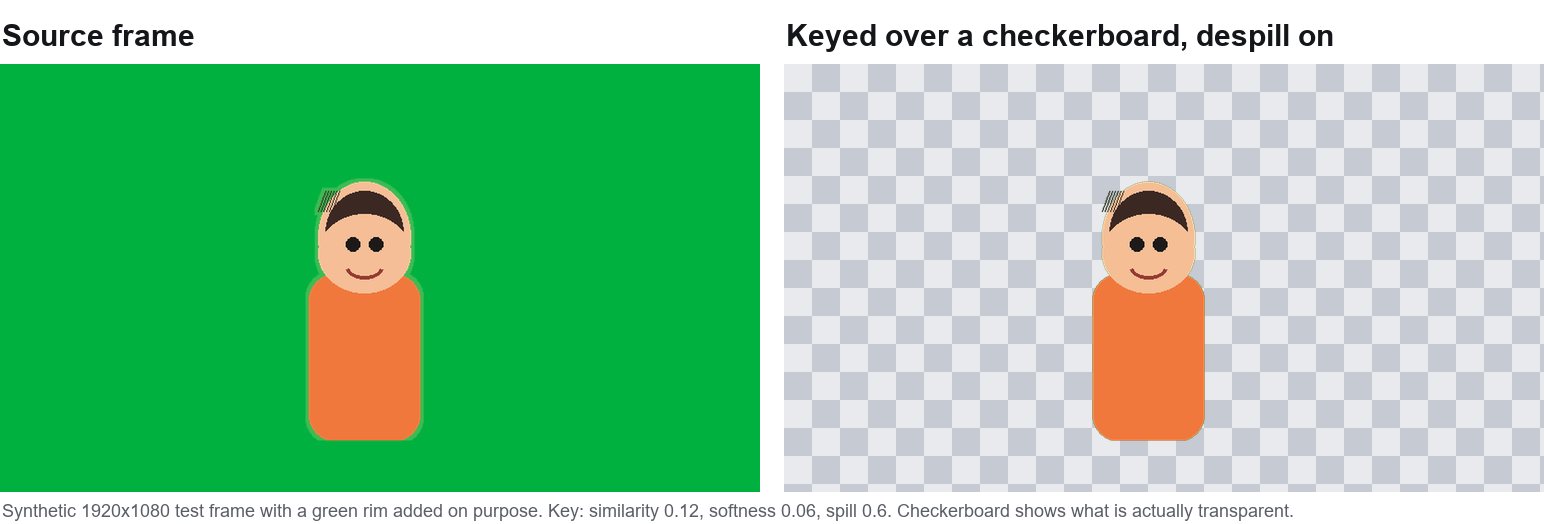
Everything below is about the middle part of that sentence — the settings, in order, with starting values you can adjust, plus what to do when the footage is already shot and you cannot call the talent back.
Why most green screen removals look ragged
There are only four reasons a key fails, and they are not equally common:
- Uneven lighting. The screen is one shade of green in the middle and a darker, bluer green at the edges. A single key colour cannot describe both, so one side of the frame keys badly.
- Spill. Green light bounces onto the subject — most visibly on hair, shoulders and anything shiny. The key itself is fine; the fringe around the subject is not.
- A key colour sampled from the wrong pixel. Picking the darkest corner of the screen or a shadowed fold gives the keyer a colour that does not exist where the subject actually is.
- Chroma subsampling. Footage recorded at 4:2:0 stores colour at a quarter of the resolution of brightness. Fine edges are exactly where that hurts, which is why a key that looks great on a phone screen falls apart on a monitor.
The four settings, in the order you should touch them
1. Key colour — sample the area the subject stands in
Pick a pixel from the screen behind and beside the subject, at mid-height, where the lighting is representative. Not a corner, not a fold, not a highlight. If the screen is lit unevenly, sample two or three spots and split the difference — or key in two passes (see below).
2. Tolerance / similarity — raise it until the background is gone, then back off one notch
Tolerance is how far a pixel's colour may drift from the key colour and still be treated as background. Push it up until the screen disappears, then drop it slightly so the subject stops losing chunks — green clothing, green props, and dark hair edges are the first casualties. On most keyers the useful band is narrow: a few percent either way changes the result more than you expect. If you need a very high tolerance to clear the background, that is a lighting problem, not a settings problem.
3. Edge softening / feather — small numbers only
This blurs the boundary so the cutout does not look like it was made with scissors. On 1080p footage, one to three pixels is usually enough. Push it much higher and the subject starts looking like it is wrapped in plastic, and the matte bleeds into the new background. Feather hides a slightly imperfect key; it cannot hide a badly lit screen.
4. Spill suppression — the one people forget
Spill suppression desaturates the green that bounced onto your subject. Turn it on, then raise it slowly while watching hair and light-coloured clothing: too little leaves a green rim, too much turns skin grey and drained. A useful trick is to check the result against a strongly coloured background — a green fringe that is invisible against a dark background is glaring against magenta.
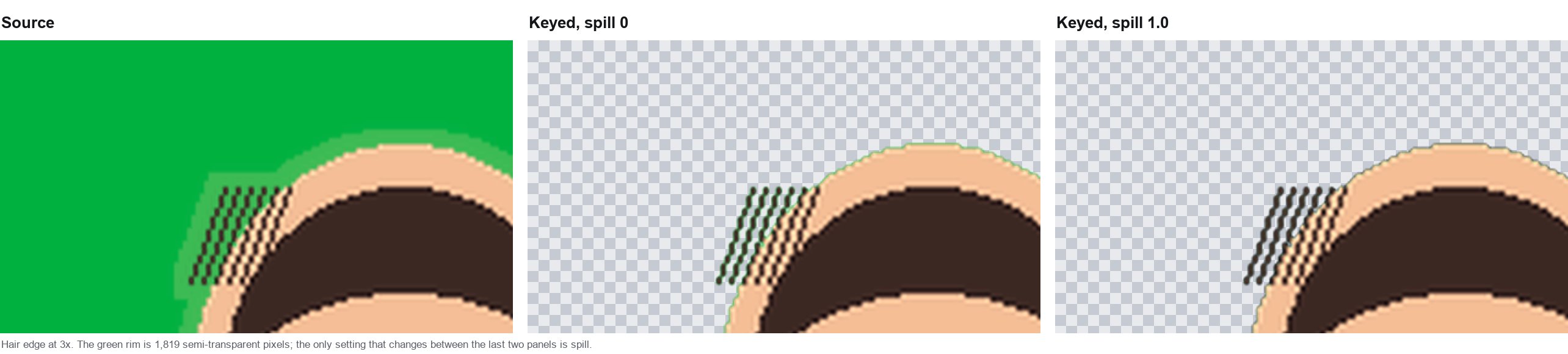
g' = g − (g − max(r, b)) × spill, the formula this site's tool uses, which pulls green down to the level of the other channels and leaves the alpha channel untouched.Fixing footage you cannot reshoot
When the screen was lit unevenly or the subject moved close to it, one pass will not do it. Three techniques cover most of these cases:
- Key twice with a mask. Split the frame into the area that keys well and the area that does not, then apply a separate key to each. Two mediocre keys beat one compromise key.
- Use a garbage matte first. Draw a rough shape around the subject and exclude everything outside it. The keyer then only has to solve the difficult edges instead of the whole frame.
- Desaturate the greens in a second pass. If spill survives suppression, a targeted hue/saturation reduction on the green range cleans up the fringe without touching skin tones.
Export: getting the transparency out alive
This is where good keys go to die. Transparency needs two things that are easy to confuse: a format that can store alpha, and a player that composites it. Failing either one gives you a flat background.
- No alpha at all — H.264 (AVC). This is the default in nearly every editor's export panel, which is why "transparent in the preview, black in the file" is such a common surprise.
- Alpha, Apple platforms — HEVC with Alpha. Apple published the profile in 2019: the alpha travels as a second, auxiliary HEVC layer beside the colour layer, each with its own parameter sets. Apple's documentation puts the sample code at macOS 10.15 or later, and the WWDC session that introduced it names iOS 13, tvOS 13 and macOS Catalina as the playback baseline. A decoder that ignores the auxiliary layer still plays the colour layer, so the file plays flat rather than failing.
- Alpha, Chromium and Firefox — WebM with VP8 or VP9. These are the two engines where alpha WebM is the well-trodden path, and the combination we would reach for first on Windows or Android. Version matters more than brand here, so verify with your own file rather than trusting a support table.
- Playing a file is not the same as compositing its alpha. Safari is the case where those two come apart most often, and it is also the browser most likely to change between versions. Test the exact browser and version you are shipping to, with a file whose alpha you have verified elsewhere, before you rely on WebM alone — and ship HEVC with Alpha as a second source if the page has to work in Safari.
- Production formats. ProRes 4444, QuickTime Animation, and PNG or TIFF image sequences all carry alpha and are the right choice when the file is going into another editor.
- Re-encoding flattens it anyway. Social platforms and video hosts re-encode uploads and transparency rarely survives. If the clip is going to be uploaded, composite the new background in the edit and export a normal opaque file.
A practical rule: pick the alpha format your delivery target actually composites. WebM with VP9 for Chromium and Firefox, HEVC with Alpha for Safari and Apple devices, ProRes 4444 or an image sequence when the next step is another editor. And when the next step is a viewer rather than an editor, bake the background in and skip the problem entirely.
Shooting it right the next time
- Light the screen separately from the subject, and check it with a scope or waveform if you have one — the goal is an even value across the whole surface.
- Keep the subject at least one and a half metres from the screen. Distance is what stops green bouncing onto them in the first place.
- Do not overexpose the screen. A blown-out green clips to white-ish values and loses the colour information the keyer needs.
- Shoot the highest chroma quality your camera offers. 4:2:2 halves the problem described above compared with 4:2:0.
- Avoid green clothing, green props, and green reflections in glasses — every one of them is a hole in your matte waiting to happen.
When you only need a clean still or a quick clip
If the job is a single frame, a thumbnail, or a short clip and you do not want to open an editor at all, a browser-based keyer is usually faster. Our own green screen remover runs entirely on your device — it takes an image, not a clip, and processes it in the browser without uploading it, which matters if the footage is client work or contains people who did not sign up for it to sit on someone else's disk. For a clip, export the frame you want to fix as a still and run that through; the rest of the settings on this page still apply. You can confirm the no-upload claim yourself: open your browser's developer tools, switch to the network panel, and watch that no request carries your file.
For anything longer than a few seconds, or where you need masks and multiple key passes, stay in an editor — that is what those tools are for.
Quick answers
Why is there still a green edge around my subject?
That is spill, not a keying failure. Raise spill suppression and, if it persists, reduce saturation on the green hue range in a second pass. The cause is almost always a subject standing too close to a brightly lit screen.
Why does my subject lose chunks — a piece of hair, a shoulder?
Your tolerance is too high, or the subject contains colours close to the key colour. Lower the tolerance and use a garbage matte so the keyer only has to solve the edges.
Can I key a blue screen instead of green?
Yes, and sometimes you should — blue is the better choice with green clothing, green props, or green eyes. The settings work the same way; only the key colour changes.
My export is transparent in the preview but black in the file. What happened?
Two different failures look identical here. Either the codec cannot store alpha, or the player does not composite it. A base H.264 stream has no alpha channel, so a standard H.264 export is always flat. HEVC carries alpha as an auxiliary layer defined in the standard's multi-layer extensions, and Apple's HEVC with Alpha profile is the one with documented playback support on Apple platforms. For transparency in a browser on Windows or Android, export WebM with VP8 or VP9 and test the player you actually target. If the clip is going to a viewer rather than an editor, composite the background and export a normal opaque file.
Does a badly lit screen ruin the shot?
It makes the key harder, not impossible. Two keys with a mask, plus a garbage matte, will rescue most unevenly lit footage. It just takes longer than it would have taken to relight the screen.
Related reading: how to light a green screen, replacing a green screen with an image, and blue screen versus green screen. If you are keying inside CapCut rather than a full editor, the CapCut green screen steps walk the same four settings through that interface, and rescuing an unevenly lit screen covers the footage this page tells you to reshoot.